
Once teachers have added classes, teachers will need to "add Courses" to their classes in order for students view Course content. Students will not see any content until this is done, and this step can only be done by teachers.
Instructions:
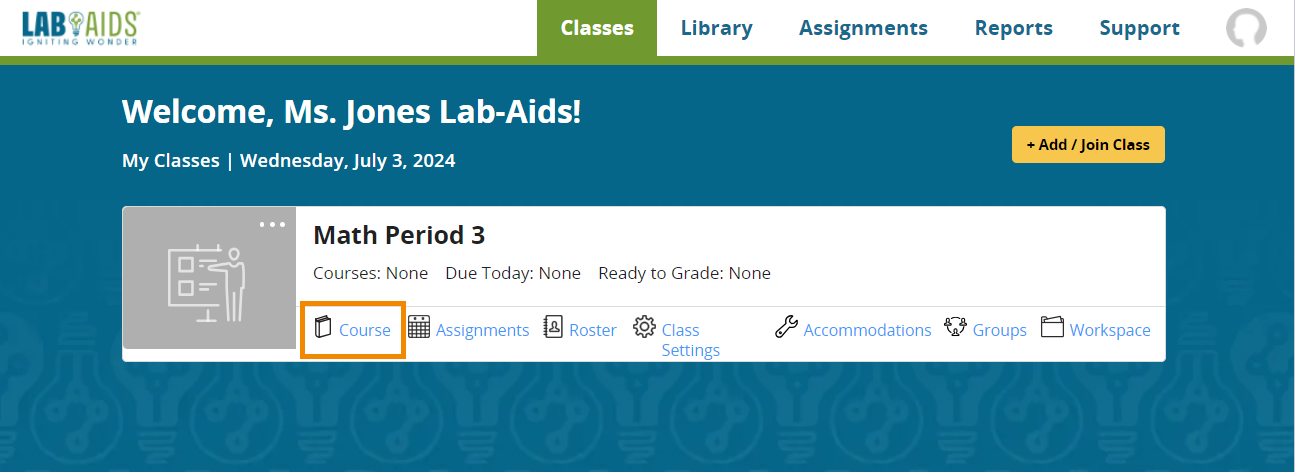
1. From the "Classes" menu, click "Course" for the class in question.
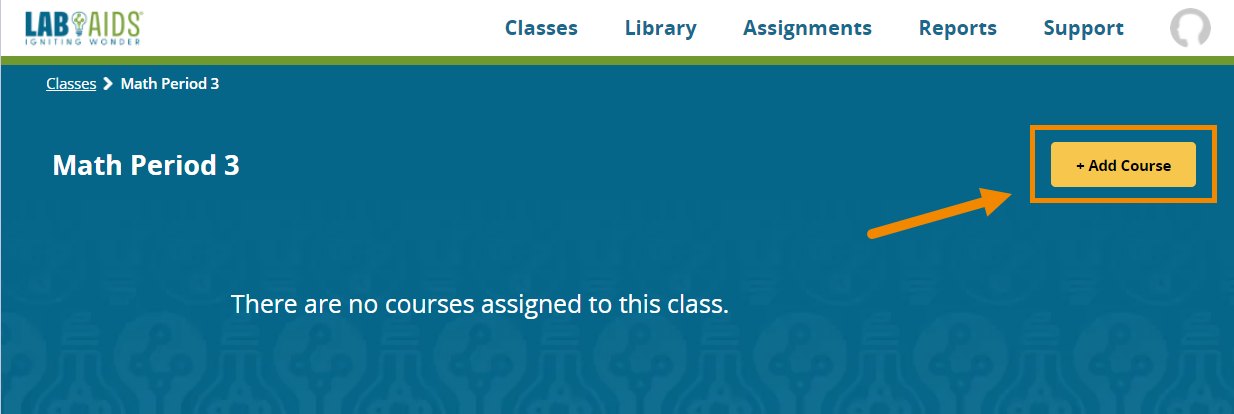
2. Click the orange "Add Course" button in the top right corner.
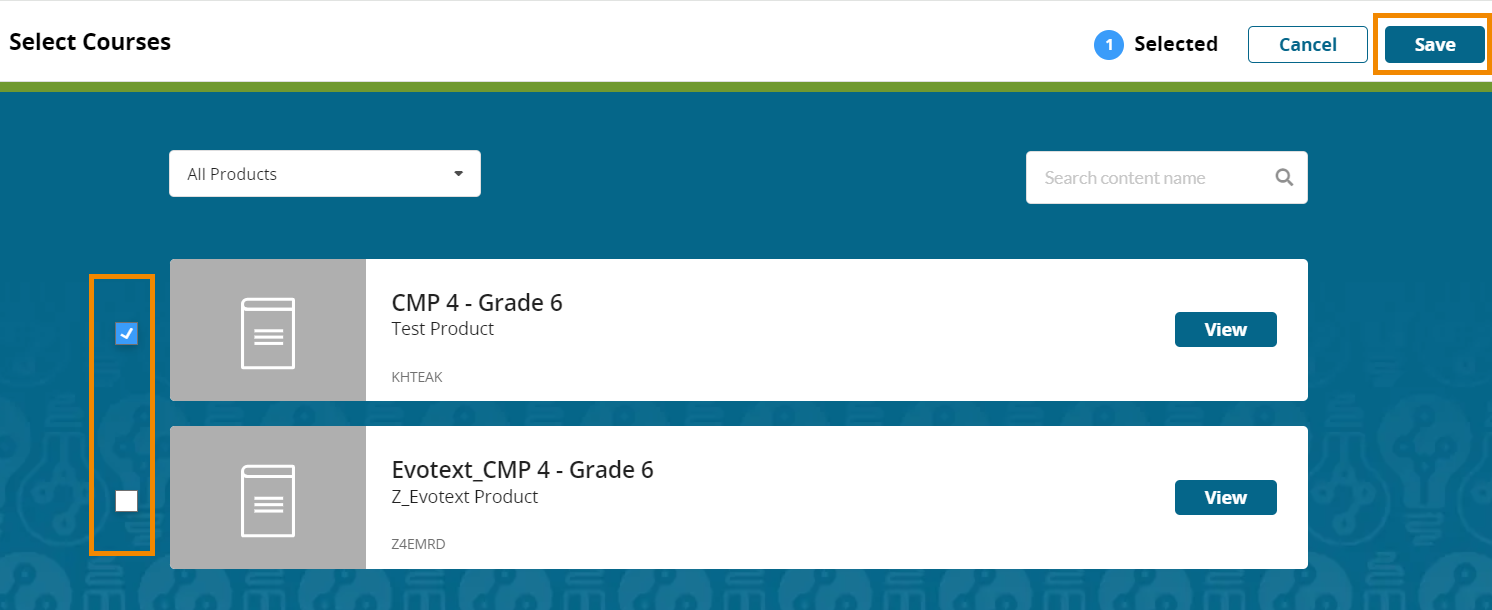
3. On the next screen, a list of Courses appears. Select the checkboxes next to the Courses to add to this class. Click the "Save" button in the top-right corner.
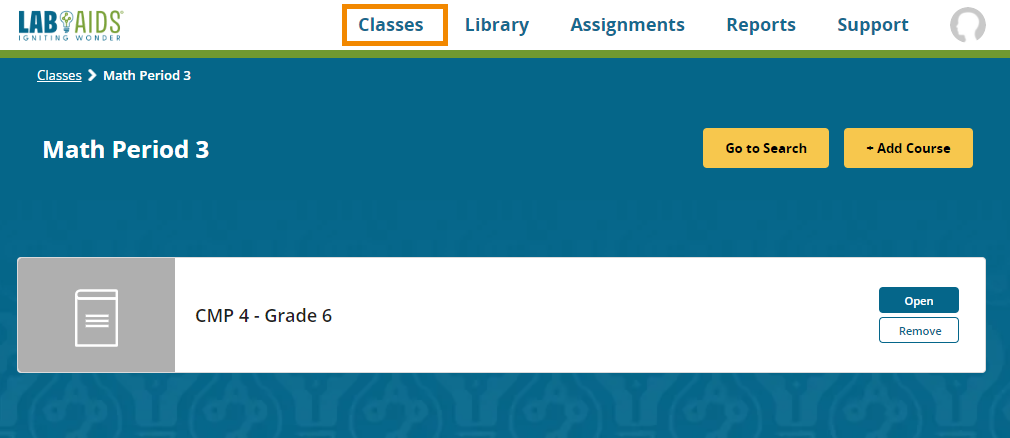
4. Once the teacher clicks the "Save" button, they will be brought back to the "Course" screen for that class where they can then see the Courses that have been added. Click the "Classes" menu to exit. If a Course needs to be added to additional classes, please repeat the process starting at step 1.
Questions? portals@lab-aids.com