
Any existing test or newly created test can be printed. Below are instructions on how to print a test.
- After logging into your Lab-Aids Math Portal account, click Test Builder to access your tests.
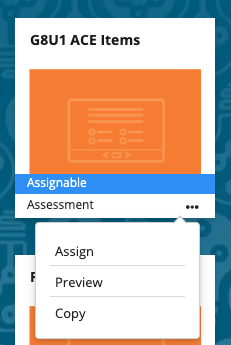
- For a particular test, click the three-dot kebob, then click "Preview."
- From the Preview of the test, click Settings >> Print.
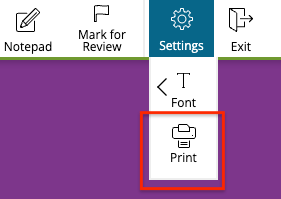
- This will display the test in a new tab, formatted for printing. From your browser, select File >> Print, and choose any necessary settings to print the test or save it as a PDF. We recommend the following two settings (which may vary based on your browser):
- Headers and Footers = exclude
- Background Graphics = include
Choosing a Test Template
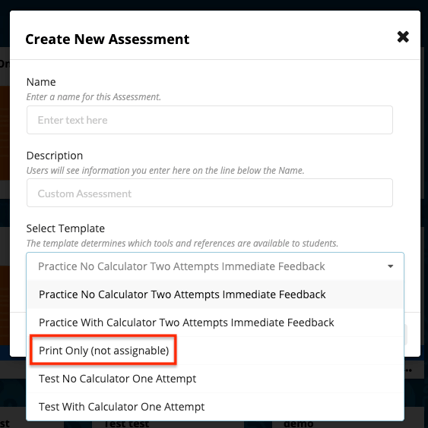
When creating a new test, you must select a template from the drop-down menu. All templates allow you to print the test, but the template "Print Only (not assignable)" cannot be assigned to students to complete online, but does allow the test to be printed.
Printable vs. Nonprintable Items
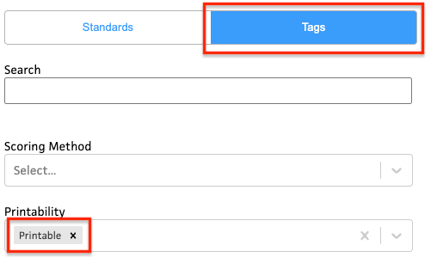
Currently, not all items are printable. Certain, tech-enhanced items (such as drag-and-drop) will not be included when printing a test. To ensure you are only including printable items, we have created a Printability tag that teachers can utilize when filtering items. See screenshot below.
Tests can only be printed without answers at this time; printing with answer will be available shortly.