Note: This report will only show Portal 1.0/ePub books. This report does not show Portal 2.0/HTML books.
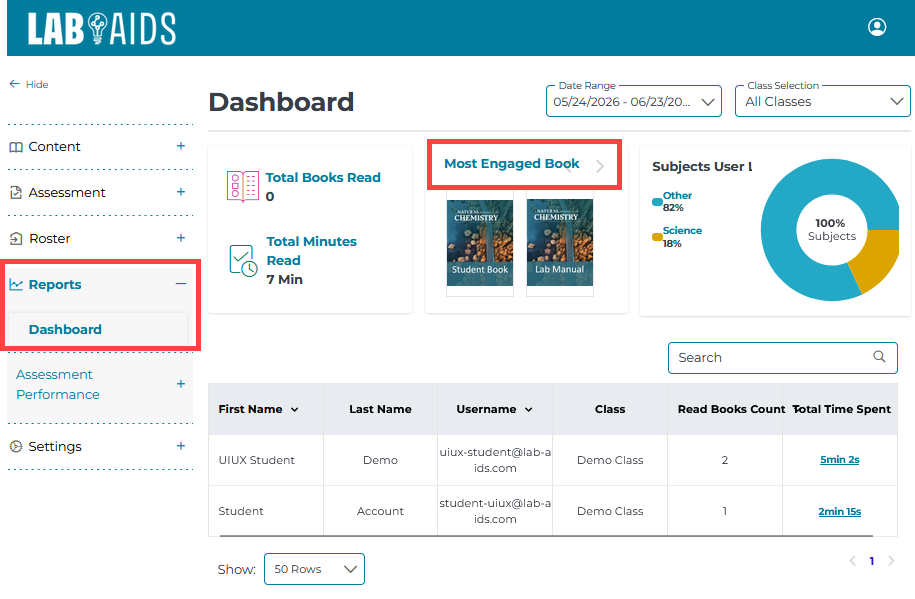
1. Log in as a School Admin or teacher. Click Reports >> Dashboard from the left-hand menu.
2. Click the "Most Engaged Book" option from the top middle.
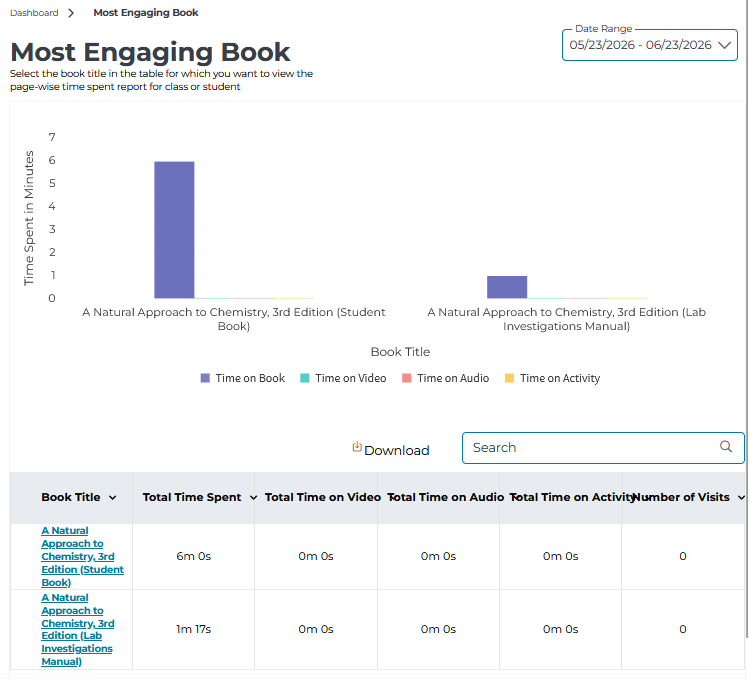
- By default, the report shows the books with the highest viewing time over the last month.
- Hover over each displayed book in the graph to view the time spent on the book in the last month.
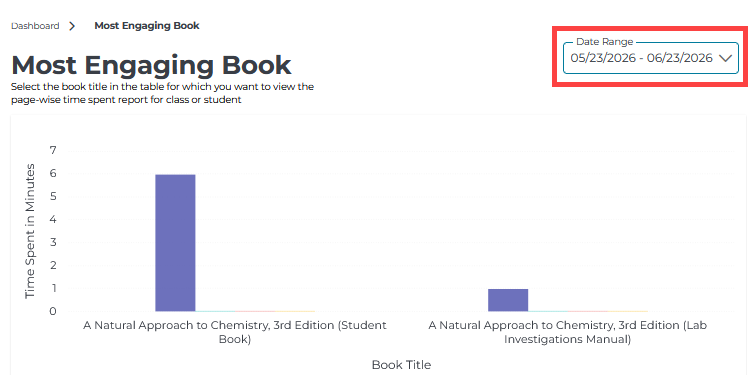
3. Change the date range by clicking on the "Date Range" option.
- This report will default to run for the last month.
- Click the "Date Range" option to run the report with different dates. Be sure to check the "from" and "to" dates to ensure the desired dates have been selected.
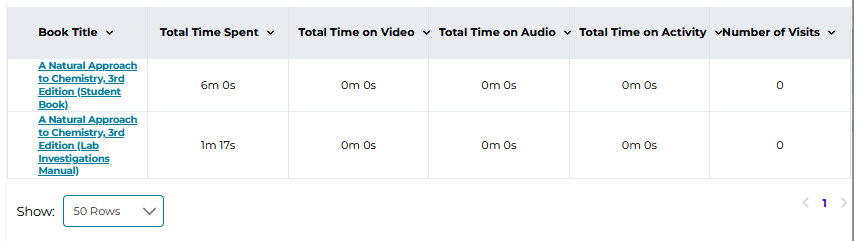
4. Scroll down to view a comprehensive list of books and the total time spend on each book.
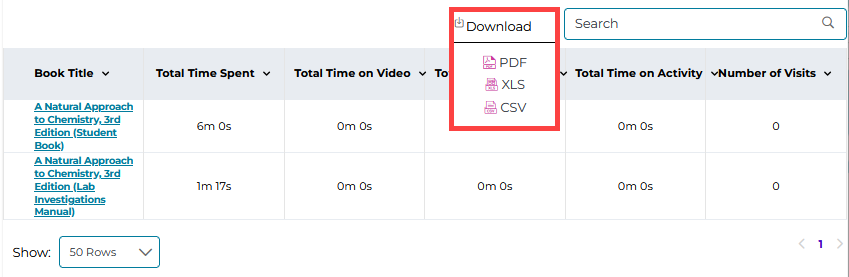
5. Export the report in PDF, .xls, or .csv format.