
In some cases, teachers have the ability to change a student's password. Below is a guide that will assist you to determine whether you can change your student's password:
- If your school or district has an integration with Google Classroom, Clever, Classlink, or LTI 1.3, you cannot change your student's password within the Lab-Aids Portal. Students use their integration to log in to their Lab-Aids Portal account.
- If you and your students redeemed an access code to gain access to content and create an account, you cannot reset your student's password. In this case, contact us if a student is having trouble logging in.
- If your school or district has someone that serves as an admin on your account, either the admin or you can change the student's password.
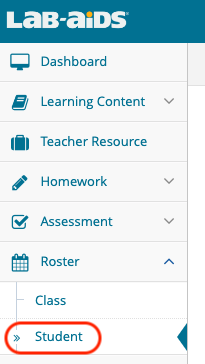
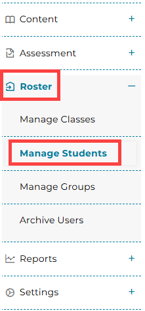
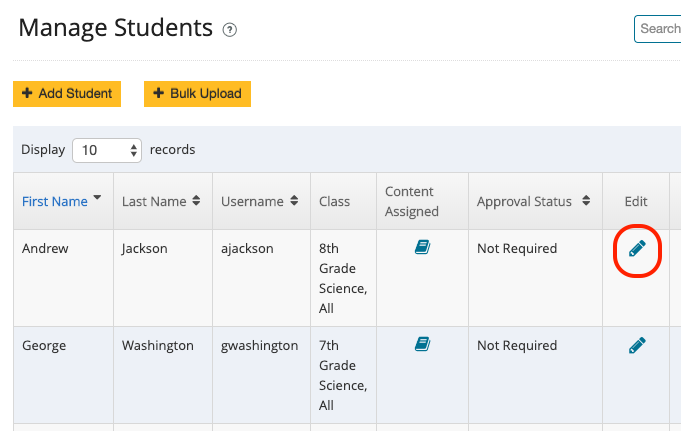
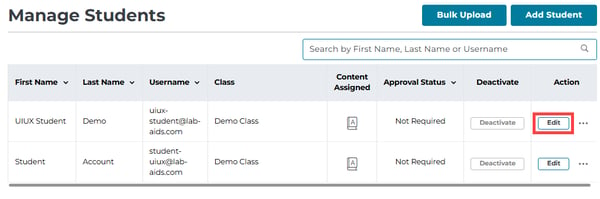
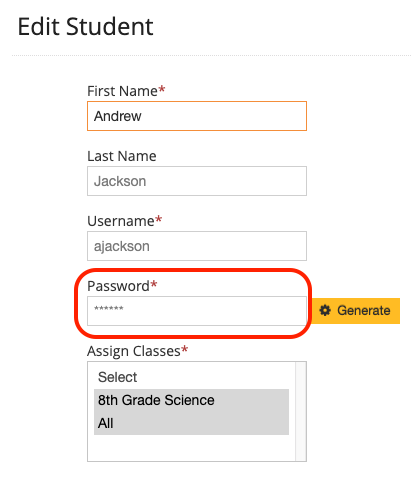
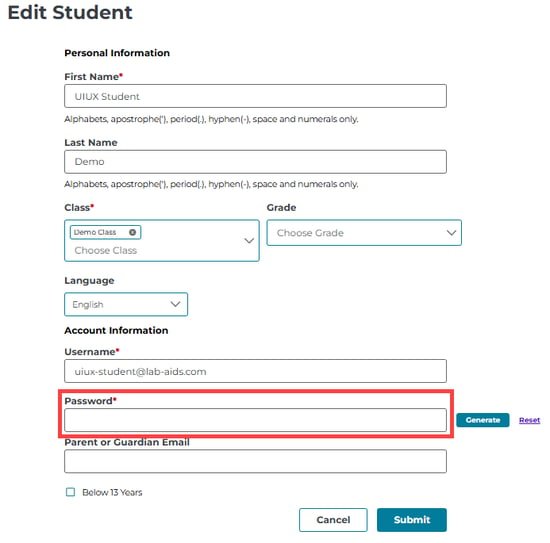
Locate the student that needs his/her password changed, and click the pencil or "Edit" icon to edit that student's account.
Type in a new password for this student and click Save or Submit when done. You can also select the Generate button to generate a random password for this student. If you do this, you will have to copy the password before you click Save since the password will not be available for you to share with the student.
Once you have clicked Save or Submit and changed the student's password, you will need to share the new password with the student yourself. The Lab-Aids Portal does not automatically email students their new password.