
If you already have Classes established that link you to your students within the Lab-Aids Portal, and your school/district is not set up with an integration, you have the ability to change the Class associations of your students. *You cannot change the Class association of students that are currently not in one of your Classes. To do this, please speak with your account admin who can assist you with this.
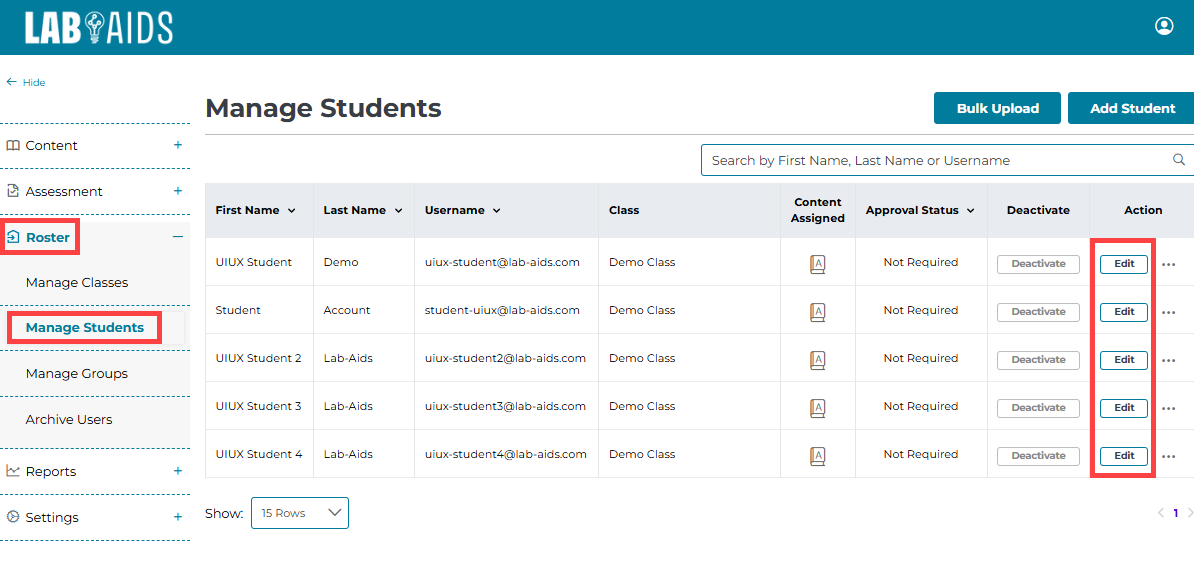
To change the Class association of one of your students, log into your Lab-Aids Portal teacher account. From the left-hand side menu, select Roster >> Student. Navigate to the student in question and select the Edit icon next to that student.
From this menu, you can see which Classes the student is associated with under the section Assign Classes. To change their Class associations, click on the new Class the student should be in. To select multiple Classes, you can press CTRL and click (in Windows) or command and click (in macOS).
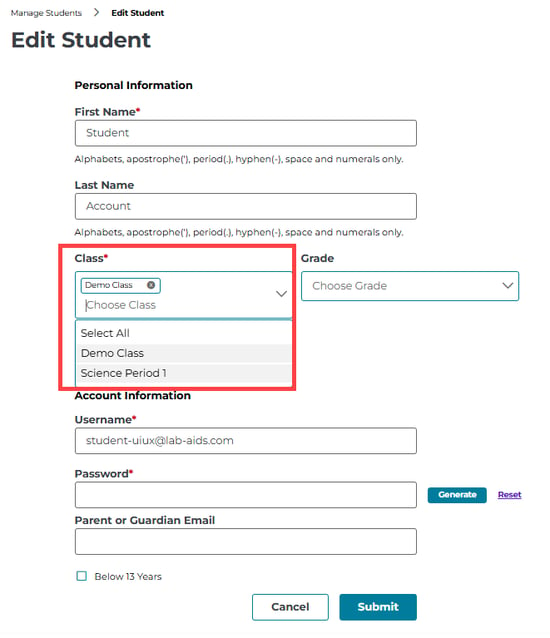
When finished, click the Submit.
*Note: If your school/district is performing an integration with Google Classroom, Clever, Classlink, or LTI 1.3, neither you nor your admin have any manual control of student and teacher Class associations. Data syncs the way it is shared with us in these integrations. If you suspect that either a teacher or student is not being associated with the correct Classes within the Lab-Aids Portal, please contact us so that we can resolve this issue.