Skip to content
  • There are no suggestions because the search field is empty.

How do I make notes within my Portal 1.0/ePub book?

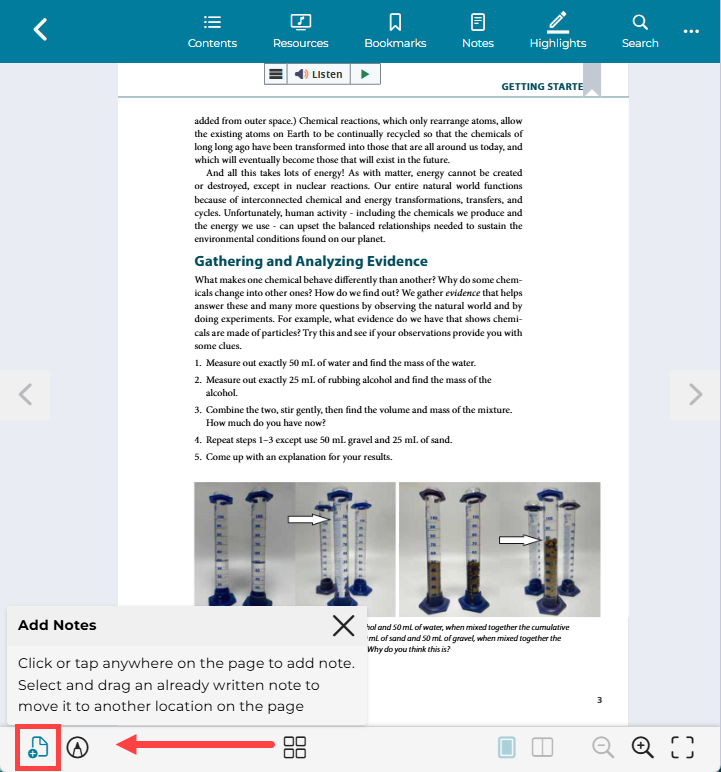
1. From any page in your book, click the "notes" icon on the top right of the page. 

Click on the "notes" icon on the top right corner.


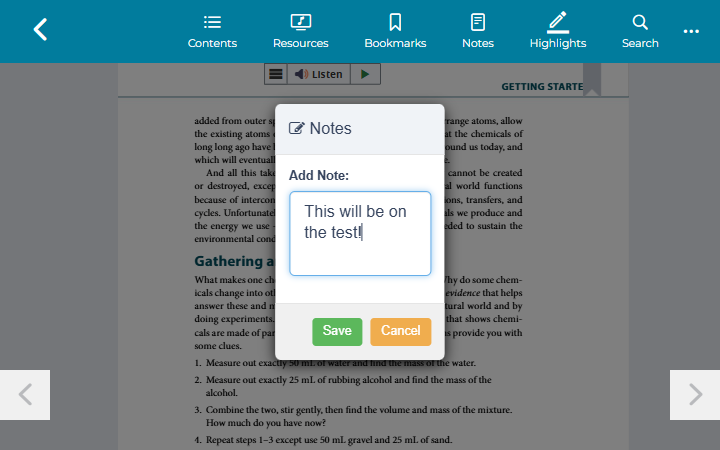
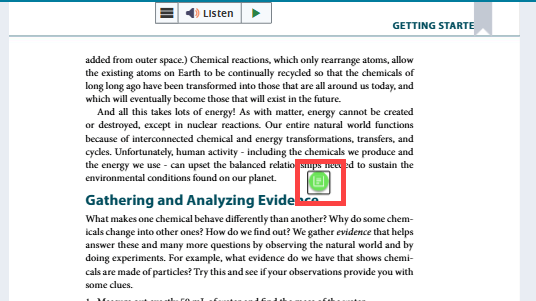
2. Click anywhere on the page to add a note. Enter the text of your note. Click "save". 

Enter note text and click "save".


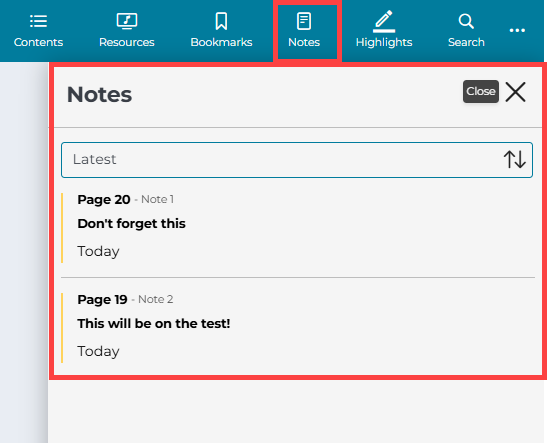
3. View all notes by clicking on the "Notes" icon on the left menu bar. You can sort notes by date entered or by page number. 

View all notes by clicking on the "notes" icon on the left side menu.