
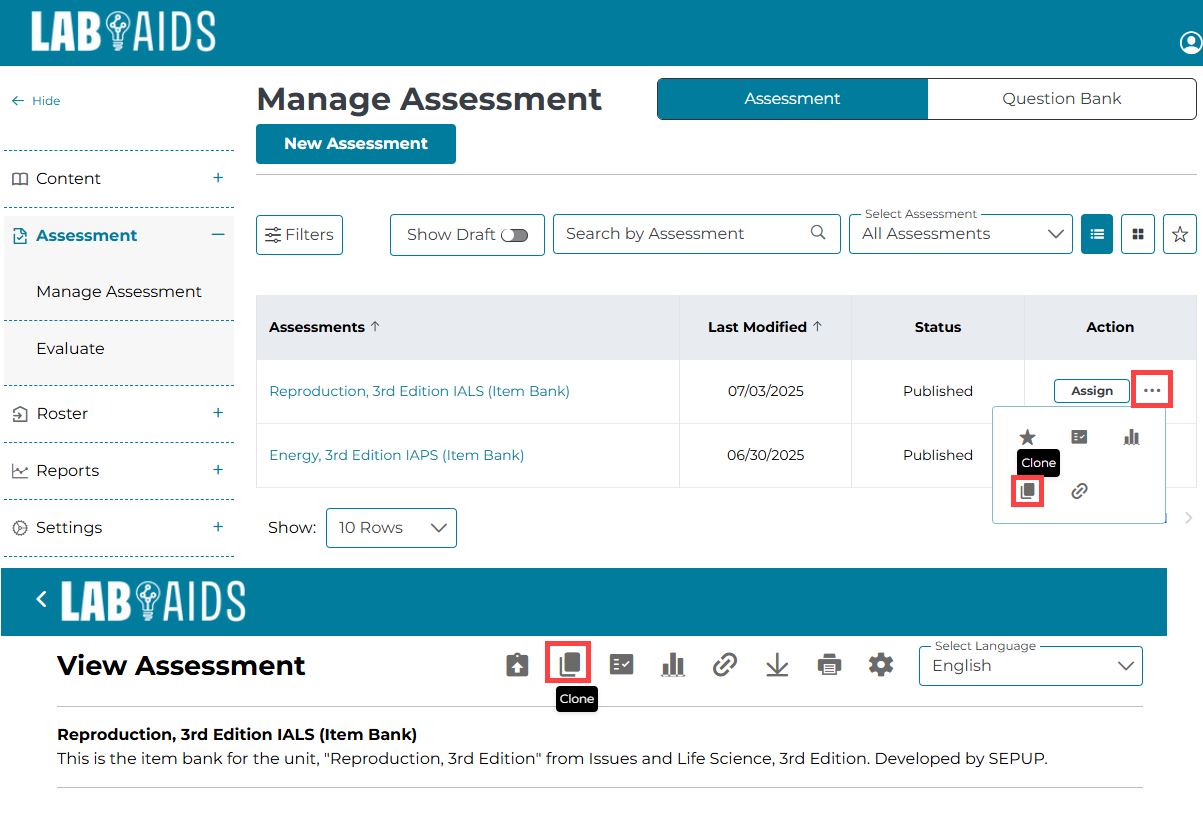
1. After logging into your teacher account, select Assessments >> Manage Assessment from the left-hand side menu. After finding the test you wish to modify, click the three dots to the right of the test and then click the "Clone" icon. Or, click on the test and click the "Clone" icon from the top bar of icons.
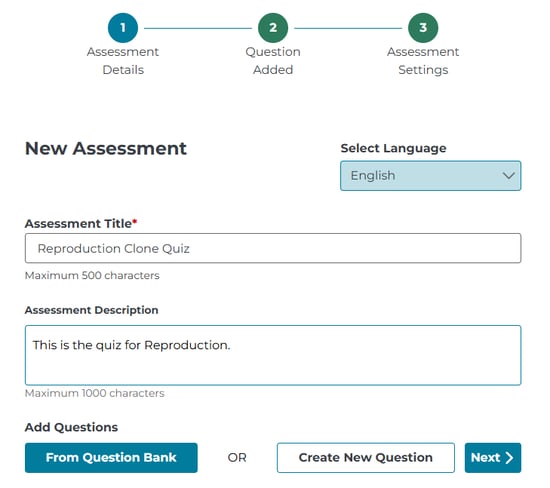
2. Enter a new title and description of this new test. The original test will be preserved and remain unmodified.
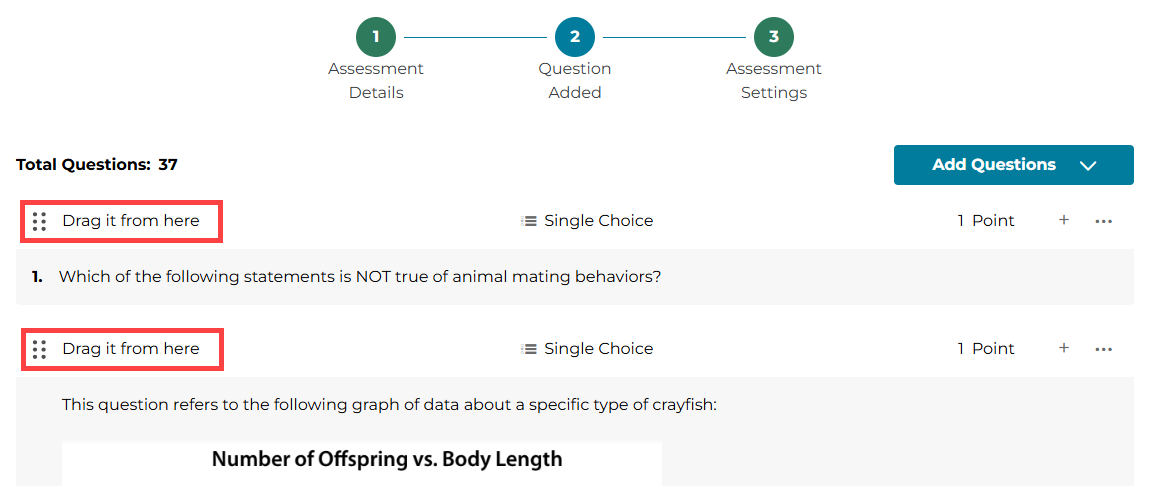
3. Click Next. To change the order of questions in the test, click and drag the top of the question (Drag if from here) and move the question to the desired order.
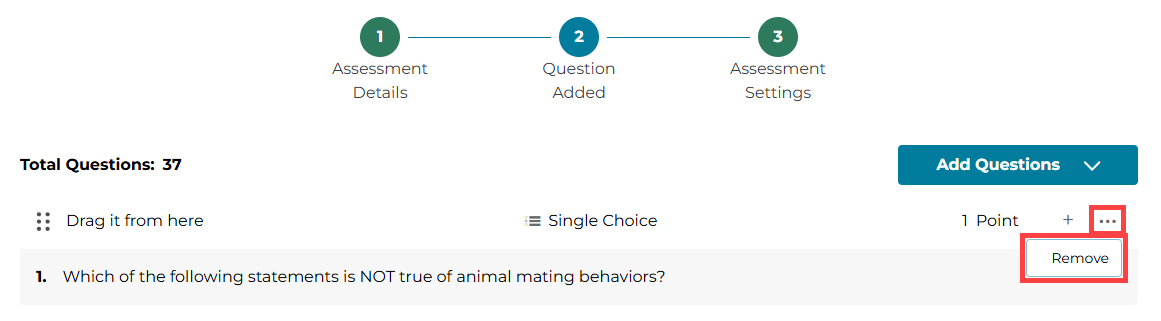
4. To remove a question, click the three dots to right side of the question and select Remove.
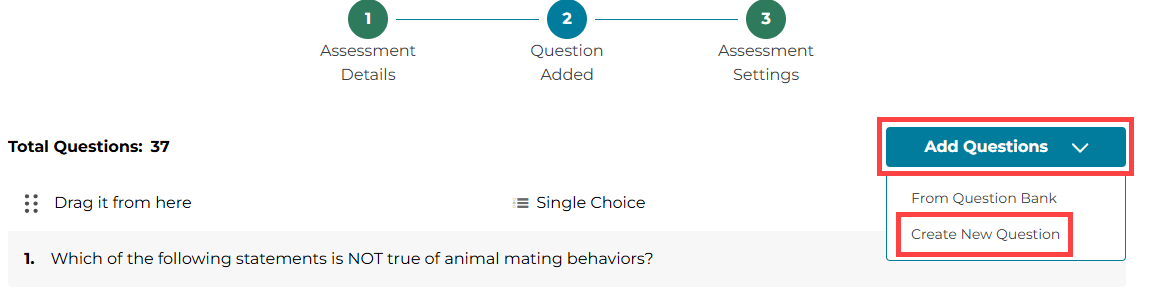
5. Questions created by SEPUP are not editable, but questions created by the user are. If you wish to edit a specific question, you may manually copy the contents of the original question into a new question. To add a new question, click the "Add Questions >> Create New Question" option from the top right and select the question type you wish to add.
6. When finished modifying this new test, select Next from the bottom right corner of the test, and then click "Publish".