
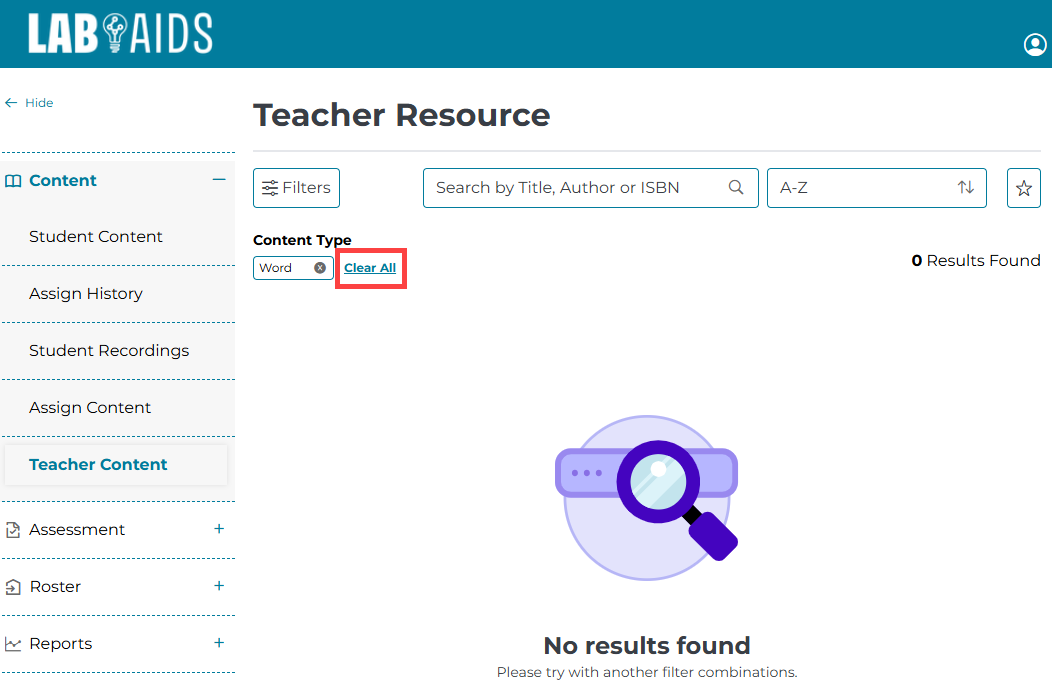
If users do not see content in their libraries and are instead seeing the "no matching records found" message with teal bars at the top, this means the user has selected filters that are hiding specific products from view. To resolve, users need to clear/reset their filters.
How to clear/reset filters:
- Click the the "Clear All" hyperlink underneath the "Filters" icon on the top left of the library.
- Or, teacher can click the X on each selected content type at the top of the screen under "Content Type".
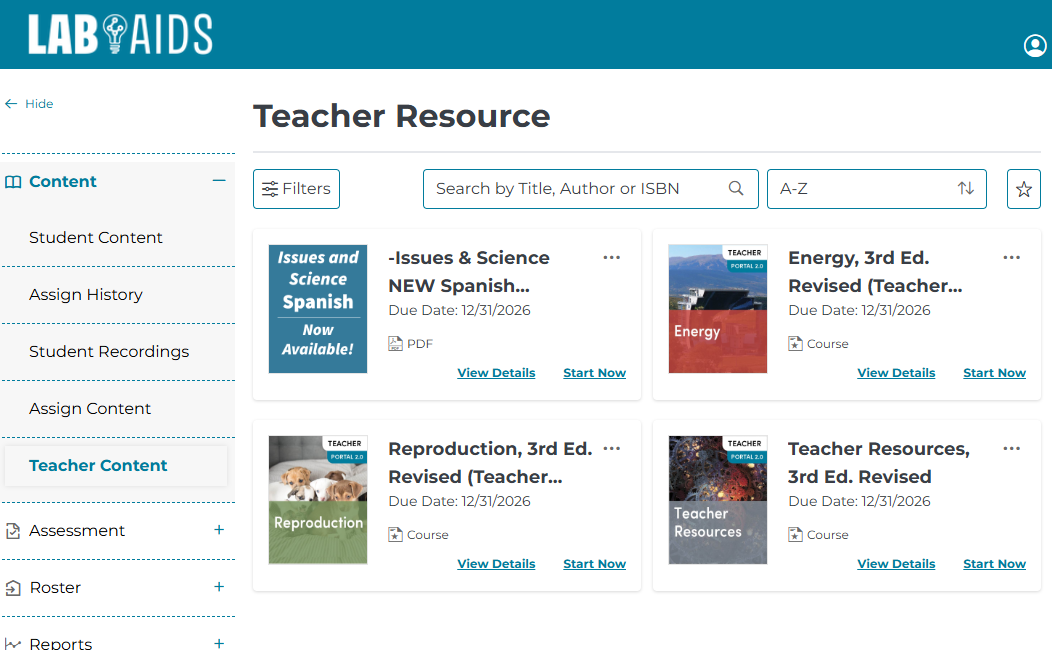
- Once this is done, all products will display in the library. If you still do not see any content in your library after clearing your filters, please contact your admin.
If you are a teacher and need help accessing books/resources in the portal, please refer to our Basic Navigation pages for Portal 1.0/ePubs and for Portal 2.0/HTML.