Contents:
Portal Navigation Video - Quick Overview Video
Portal Navigation Video - In-Depth Overview Video
How to view student and teacher content
Where to view/download resources
Hotspots
Bookmarks/Highlights/Notes
Navigation Features
Settings
ReadSpeaker
Spanish
LABsents
Navigation for California Issues and Science
Portal Navigation - Quick Overview Video:
Portal Navigation - In-Depth Overview Video:
How teachers view student and teacher content:
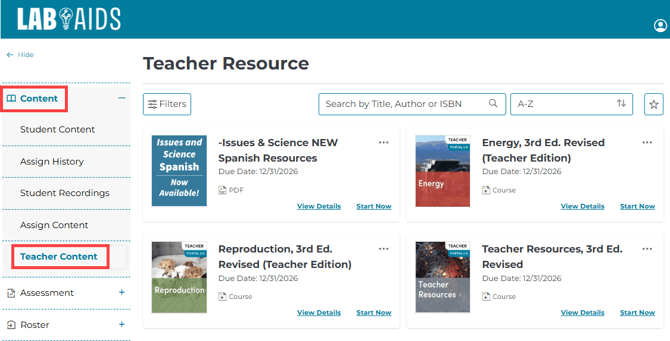
1. Teacher Content: The Content >> Teacher Content menu displays titles that just you have access to as the teacher (Teacher Edition, Teacher Resources, etc.). If not automatically brought to that menu, just click Content >> Teacher Content from the left-hand side menu.
2. Student Content: To view student content, click Content >> Student Content from the left-hand menu. This section displays titles that both you and your students have access to (Student Books, Portal Simulations, etc.)
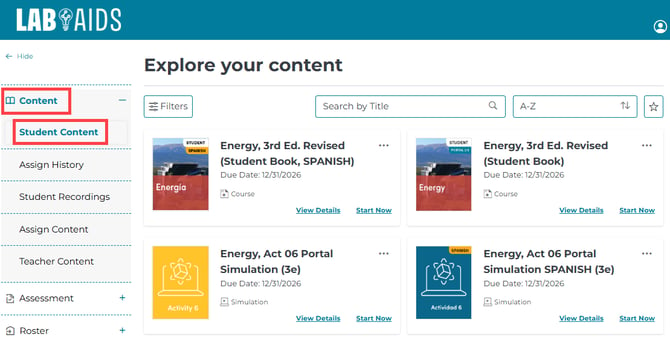
Note: If you are logged in as a Admin instead of a teacher, your teacher and student resources will be together in the same place, under Content > Content.
Where to View/Download Resources:
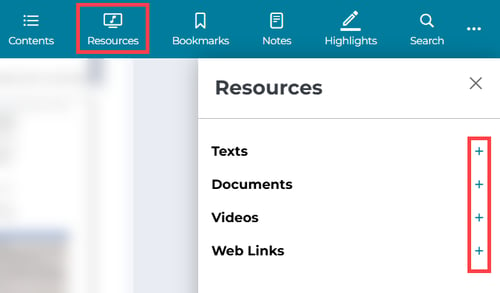
There are three different ways to find resources in the student/teacher books: From pages 1-2 of each book, from within each activity, and from the left "Resources" menu.
1. Pages 1 and/or 2 of each book:
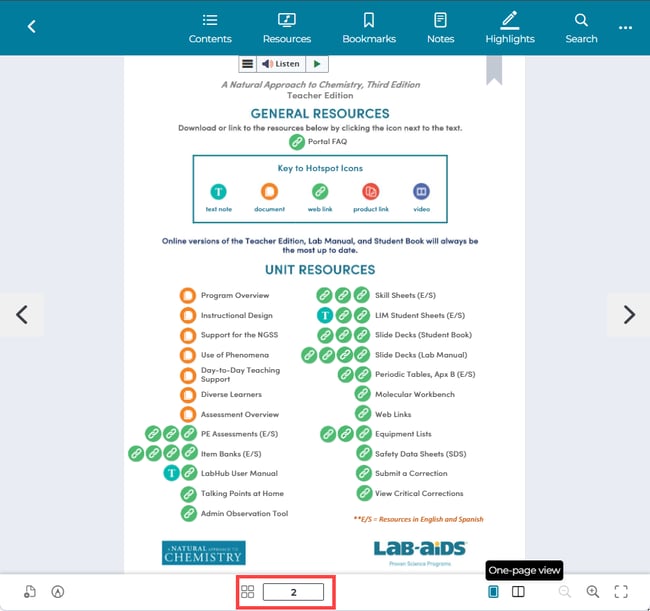
- Pages 1 and/o4 2 of each student/teacher book provides a list of unit-specific resources, PDF downloads of each book, web links, etc.
- For NAC Chemistry, resources are found on page 2. For EDC Earth Science, resources are found on page 1 and LABsents are found on page 2.
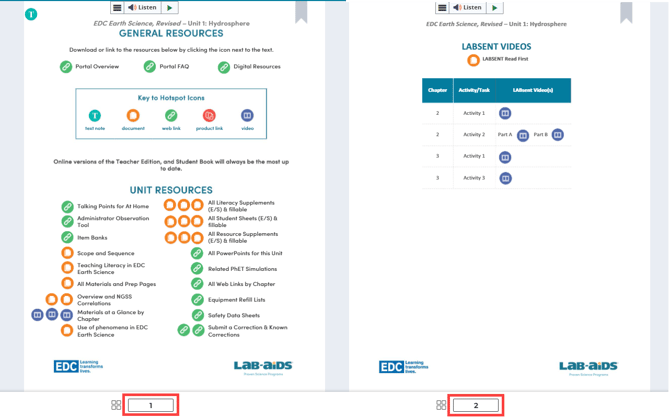
2. Within the activity in the book: Hotspot links to resources will be found throughout each activity.
- NAC Chemistry has the "Getting Started Phenomenon Video" at the beginning of each chapter next to the "Overview".
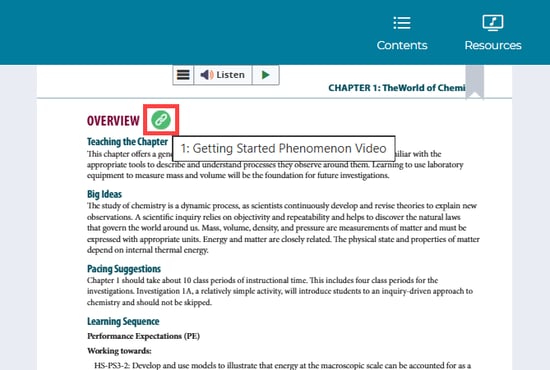
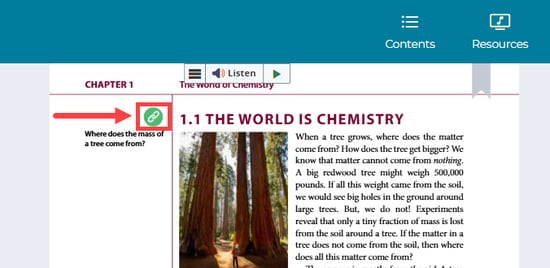
-
NAC Podcasts are available from the NAC Student book at the beginning of each chapter.
- EDC Earth Science contains resource hotspots in each "Materials and Preparation" section of each chapter. Powerpoints, web links, materials at a glance, student sheets, resource supplements, etc.
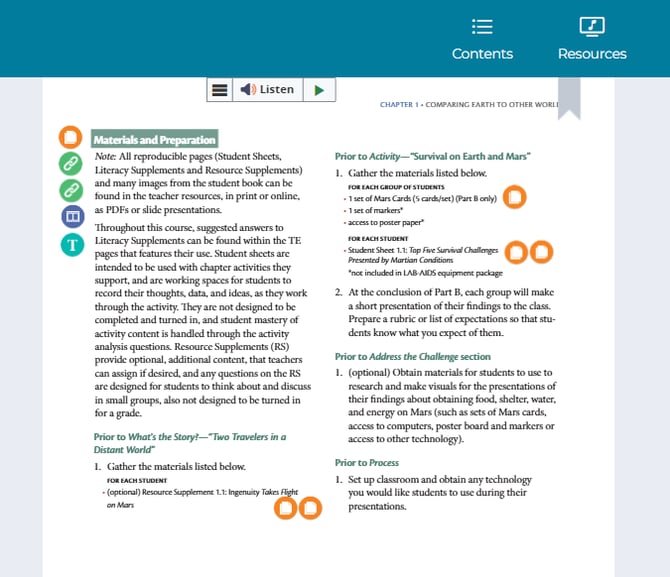
- Other resources will be found as hotspots throughout each activity where applicable.
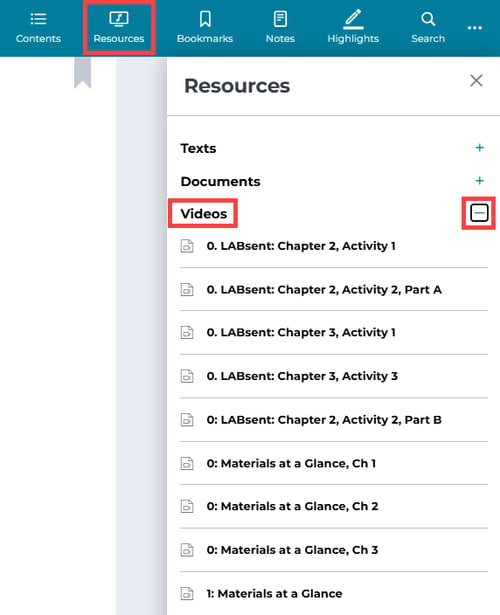
3. Left Menu: Resources > Texts / Videos / Documents / Web Links.
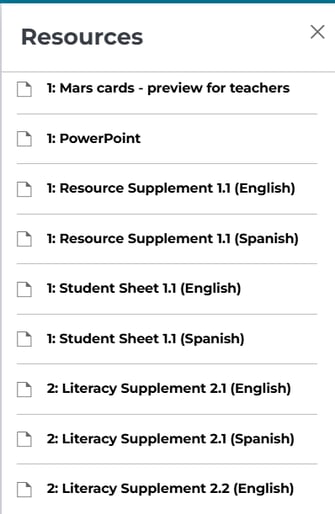
- The "Documents" sub-menu is where you'll find most downloadable resources such as PDFs, student sheets, visual aids, etc. labeled by activity/chapter number. (screenshot 2 below)
- The Texts/Videos/Web Links sub-menus will also display resources for the unit. Resources will be ordered and labeled by chapter number.
Hotspots:
There are five different types of hotspots.
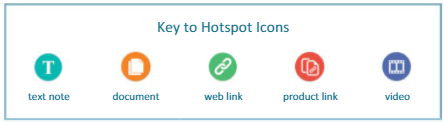
- Teal: Informative text popup, usually to explain something nearby
- Orange: Document to download (powerpoint, student sheets, PDFs, etc.)
- Green: Link to external URL (website, video, external simulation, etc.) or a zip file download (all powerpoints, etc.)
- Red: A link to a separate product in the portal, typically from the Teacher Resource or the Student Book
- Blue: A link to a video that will appear as a popup within the portal
Bookmarks/Highlights/Notes:
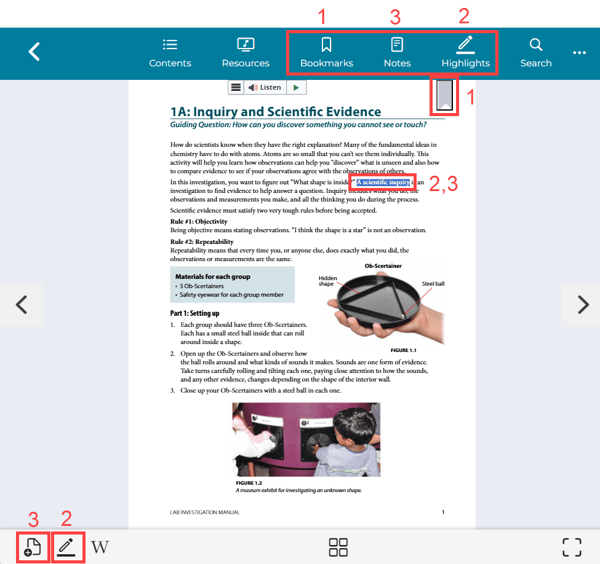
1. Bookmarks: Click on the bookmark icon on the top right of each page to bookmark the page. You can then view all bookmarks by clicking on the "Bookmarks" option on the top menu bar.
2. Highlights: Highlight text first, and then the highlighter icon will appear in the bottom left of the page. Click the highlight icon to choose a highlight color and save. You can then view all highlights by clicking on the "Highlights" option on the top menu bar.
3. Notes: Click the "Note" icon that is in the bottom left corner of the page. Add note, click Save. You can then view all notes by clicking on the "Notes" option on the top menu bar.
Navigation Features:
Multiple ways to navigate throughout the book:
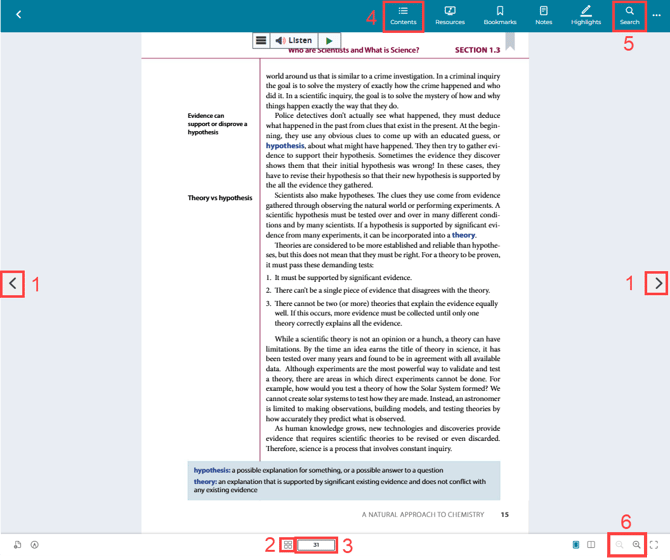
1. Next/Previous Buttons on the left and right side of the page
2. Blue "thumbnail" icon on the bottom center of the page. This icon shows thumbnails of the previous and next pages to help with navigation.
3. "Page" option up top: Click on the existing page number and enter in the page number you'd like to navigate to directly
4. Left Menu: Contents: Click Contents to browse to a specific page or activity
5. Search feature: Search for a specific word or phrase to find in the book
6. Zoom: Click the magnifying glasses to zoom in and out. Please see this page for more information.
Settings:
How do I switch to one-page view?
ReadSpeaker
About ReadSpeaker
Spanish
Spanish Resources in the Lab-Aids Portal
LABsents
EDC Earth Science contains LABsents. NAC Chemistry does not contain LABsents.
Where to access LABsents in EDC Earth Science (two ways):
- Navigate to page 2 of each Teacher's Edition. LABsent videos will be the blue hotspots.
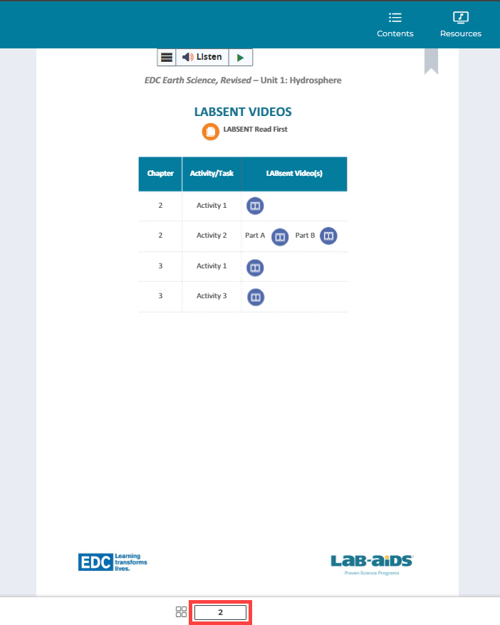
The second way to access LABsents for EDC Earth Science is from the Resources icon on the top menu. Click the Videos expand button to view the LABsent links.