
Teachers are able to unassign tests/assessments that were assigned in error. Once the assessment has been unassigned, students will no longer see the assessment in their portal account. Teachers will still see the assessment under "Assessments > Manage Assessment", but that specific assessment will not appear under the "Evaluate" menu or the "Performance Report" menu unless assigned again.
Note: Unassigning an assessment will cause any student responses to be lost. If you would like to keep any responses that have already been submitted, you will instead need to clone the assessment and assign to a new group of students.
How to unassign assessments/tests:
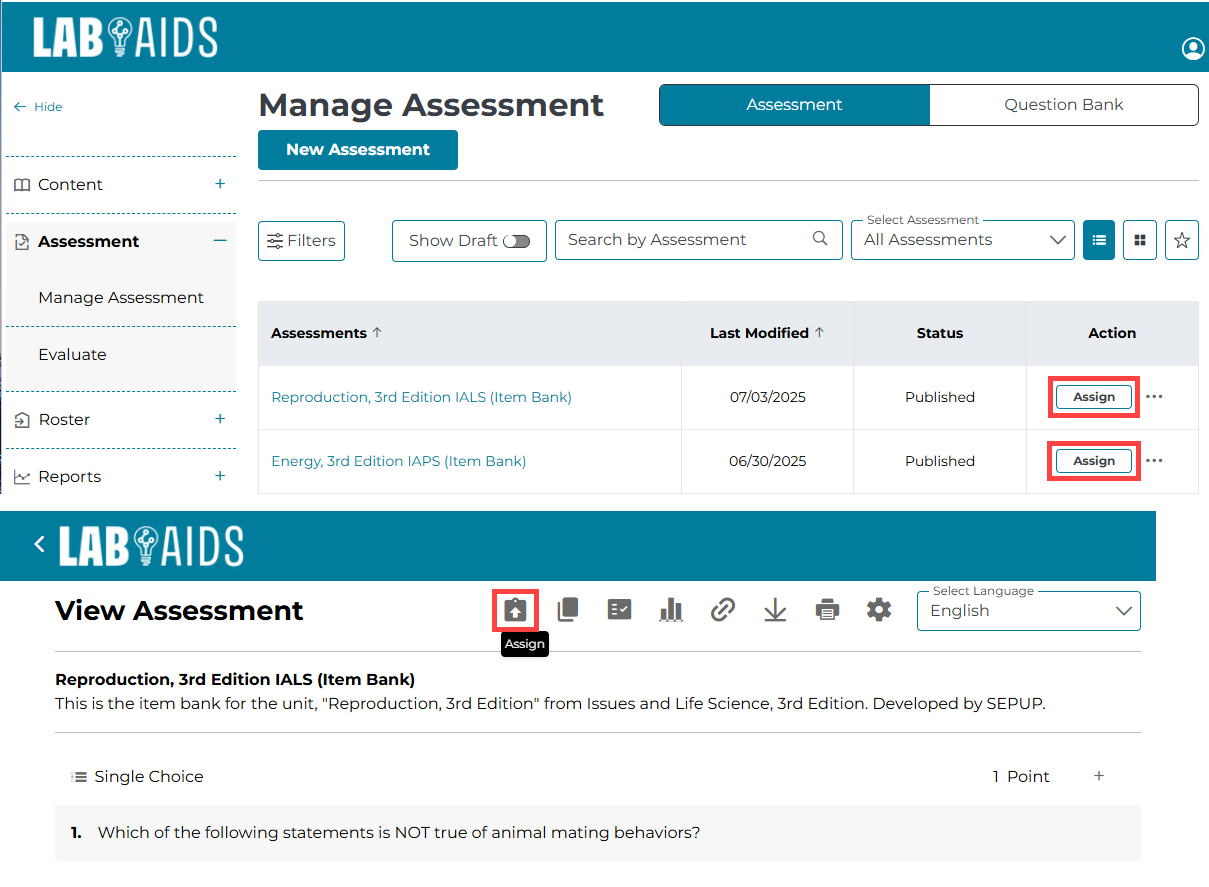
1. From the teacher portal account, click on Assessments >> Manage Assessment from the left hand menu.
2. Search for the assessment you wish to unassign. Click the "Assign" icon to the right of the assessment, or click into the assessment and click the "Assign" icon at the top icon bar.
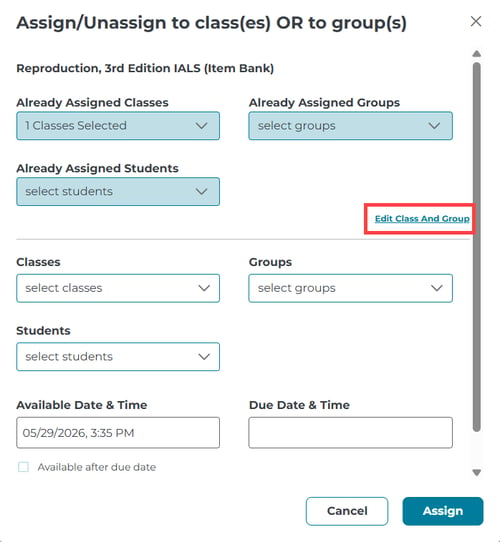
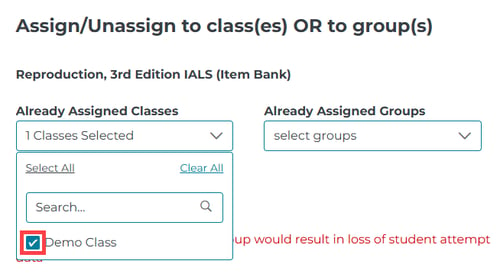
3. Click "Edit Class and Group". Click the dropdown for class or group and then deselect the desired class(es) to unassign. Click through the Confirmation screen.
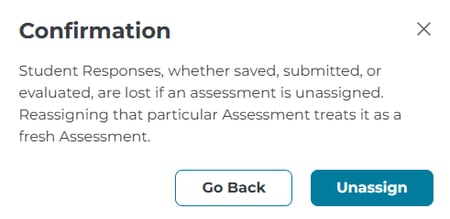
4. Click "Unassign".
The assessment will be removed from students' accounts. Teachers will still see the assessment under Assessments >> Manage Assessment, but that specific assessment will not appear under the "Evaluate" menu or the "Performance Report" menu unless assigned again.