Notes:
- Both teachers and admins can unassign content from students.
- Teachers can only unassign content that was assigned from their own teacher account. Teachers cannot unassign content that was previously assigned by another teacher.
- Teachers can choose specific content to unassign.
- Admins cannot choose specific content to unassign; admins can only unassign all content from all students (see below).
1. Two ways teachers can unassign content:
A. Bulk Unassign from "Assign History":
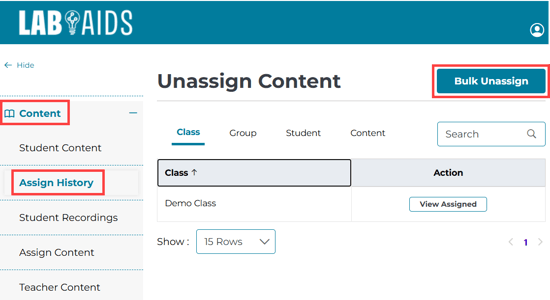
- Click on Content > Assign History on the left menu, and then click the teal "Bulk Unassign" button in the top right corner.
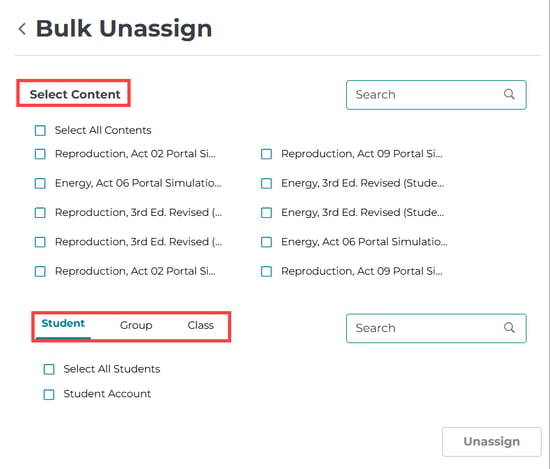
- Select which content to unassign. Select "all" or specific content by clicking or typing in the box. Multiple results are allowed.
- Select students/groups/classes from whom to unassign the content. Select "all" or select specific students/groups/classes by clicking or typing in the box. Multiple results are allowed.
- Click "Unassign." A green popup will appear at the top of the page to confirm the content has been removed.
B. Unassign one product at a time from "Assign History":
- Click on Content >> Assign History on the left menu. Choose Class, Group, Student, Content, etc. from the top line. Then, click "View Assigned".
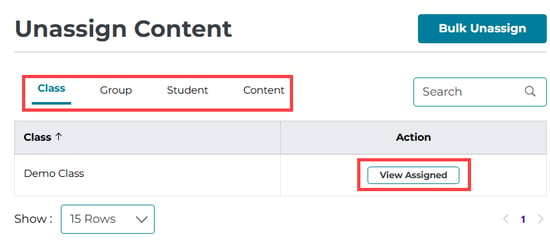
- This screen will display the individual books/simulations the teacher previously assigned to classes/groups/students.
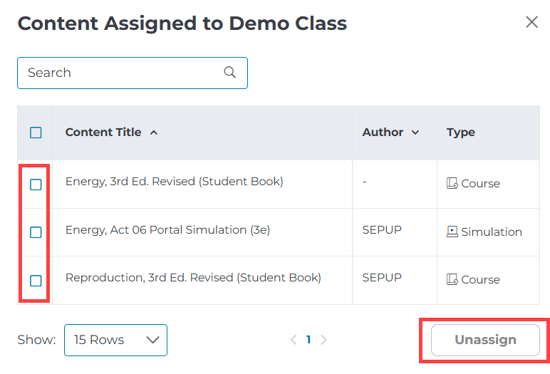
- Click the checkbox button next to each product to unassign, and then select the "Unassign" button on the bottom right.
- Click "Unassign." A popup will appear at the top right of the page to confirm the content has been removed.
2. How admins can unassign all content from all students:
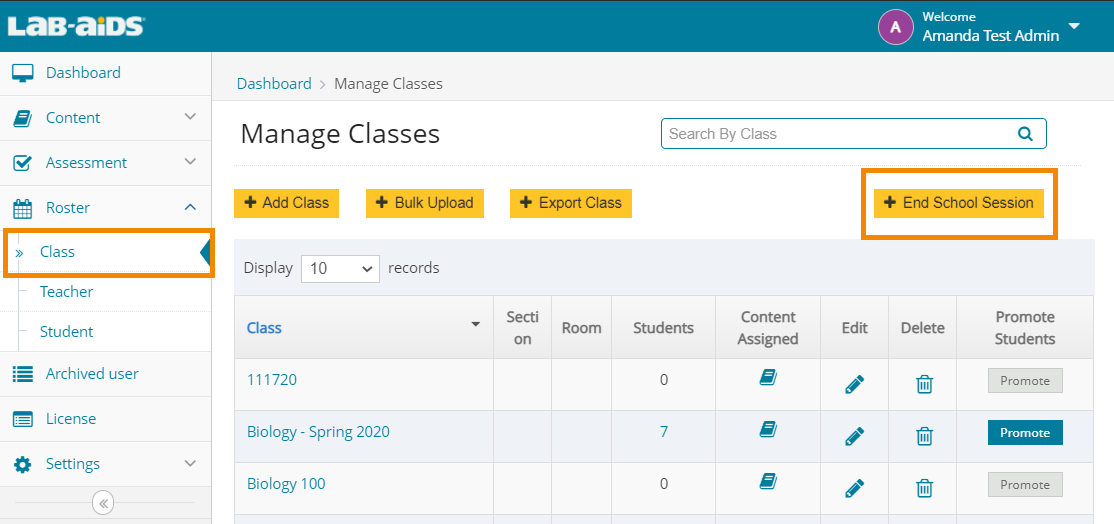
End School Session: At the start of a new school year and in other some other cases, all licenses/content needs to be unassigned from all students using the "End School Session" button. This action will remove all content and unassign licenses from all students at the school.
This action can only be done by the admin. This action cannot be undone. It will not remove content from teachers. If you are set up with Clever/Classlink, this will need to be done for each school.
How to End School Session:
- Log in as admin. Go to Roster > Class.
- Click "End School Session" in the top right corner.
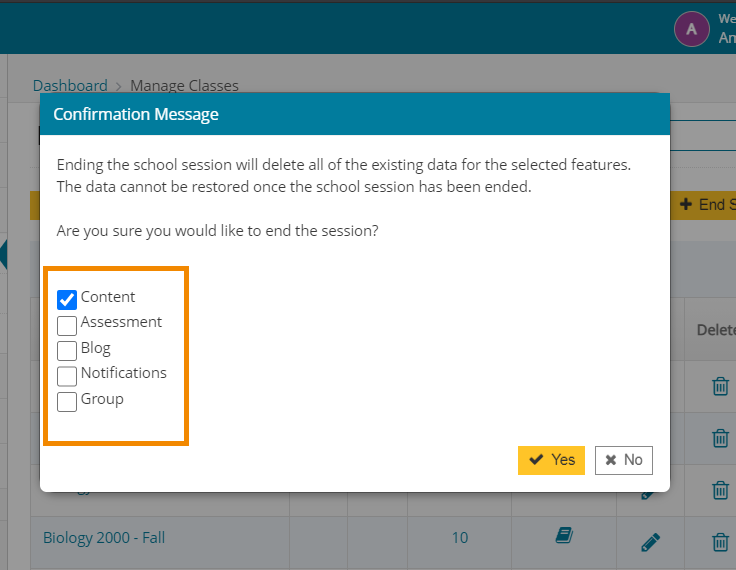
- A popup will appear with options:
- If this is the start of a new school year, keep all options selected so that old assessments/notifications are removed in addition to content/licenses. Click "Yes" to save.
- If you only want to unassign content/licenses from students (perhaps in the middle of the school year), uncheck all options except for "Content". Click "Yes" to save and remove all content/licenses from all students.
- This action will remove all content from all students.