
1. Create the District Admin account:
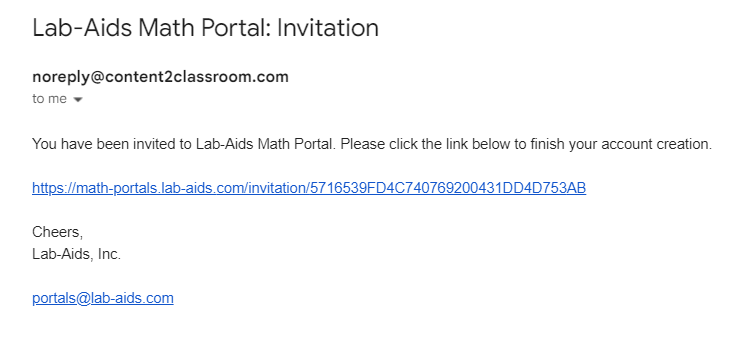
- District admin will receive an email from noreply@content2classroom.com with the subject "Lab-Aids Math Portal: Invitation". Admin must click on the link within the email to create their account.
- Once district admin account is created, log in as District Admin at https://math-portals.lab-aids.com.
2. Add teachers to the platform:
Lab-Aids will invite teachers to create accounts in the Lab-Aids Portal, once teacher email addresses have been communicated to Lab-Aids. Teachers will receive an email from noreply@content2classroom.com with the subject "Lab-Aids Math Portal: Invitation" and must click on the link in the email to create their accounts.
3. Provide instructions and resources to teachers:
For districts that purchased student licenses, teachers will be responsible for rostering their own classes/students and assigning content to classes. District admin needs to provide teachers with these instructions and resources:
- How teachers add classes and students
- How teachers add courses to classes
- This will give students access to the general content for their grade
- Optional: How teachers assign assessments/assignments to their students:
- This instructs teachers on how to assign specific assessments/assignments to students beyond the general grade-level content (above)
- Teacher Portal Navigation Page, including a video
- Math Portal FAQ Page: https://support.lab-aids.com/math
- We recommend checking this page periodically, as we are regularly updating this page to add new resources.
Questions? portals@lab-aids.com